 Tutoring
  OneCard
  Bookstore
  Library
  Canvas
  Self Service
  Email
Email  Office Apps
  HelpDesk
  Employee Hub
  NetID/Passwords
Instructions
Currently Enrolled Brookdale Students
How to change your password on or after the expiration deadline
You must know your current password to change your password.
- Navigate to MyBrookdale > NetID/Password > Change Your Password
- Follow the onscreen instructions.
How to change your password before the expiration deadline
You will be prompted to change your password. You must know your current password to follow the prompts to change your password.
If you do not know your current password, you must initiate a password reset:
- Navigate to MyBrookdale > NetID/Password > Forgot Your Password?
- Follow the onscreen instructions.
For additional support, contact the Help Desk at helpdesk@brookdalecc.edu or call 732-224-2829.
Brookdale Employees
Please follow the instructions that reflect your working situation:
- Brookdale-Issued Laptop — Working on Campus
- Brookdale-Issued Laptop — Off-Campus and Not Currently Using the VPN
- Brookdale-Issued Laptop — Using the VPN
- Working Remotely Using a Personal Device
Brookdale-Issued Laptop — Working on Campus
This method will automatically update your password for your Brookdale-issued laptop, as well as your NetID password. You will use the new password to log into your Brookdale-issued laptop and to access your Brookdale Email, Office 365, Canvas, Brookdale Experience, and Self-Service.
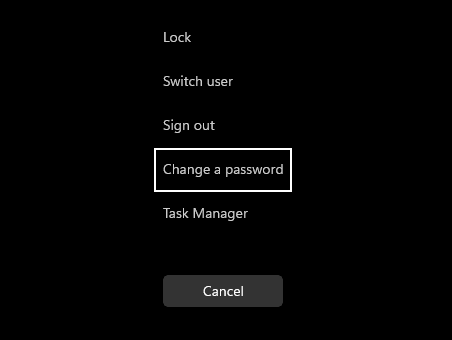
- Log into your laptop with your current password, then press Ctrl + Alt + Delete.
-
Select “Change a password”.
-
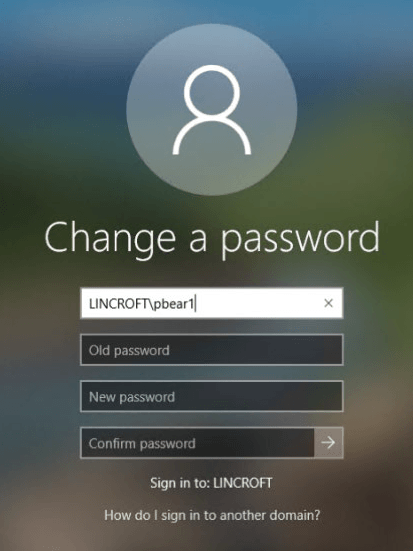
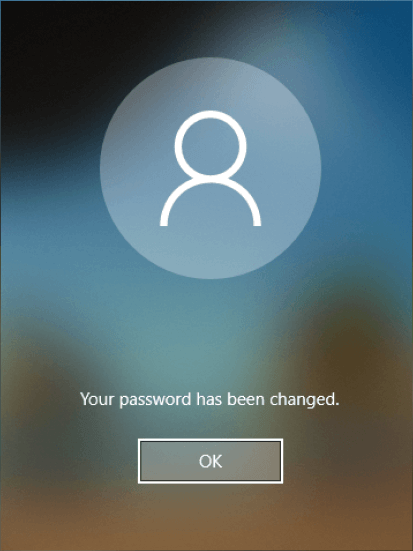
Enter your current password, then your new password twice.
-
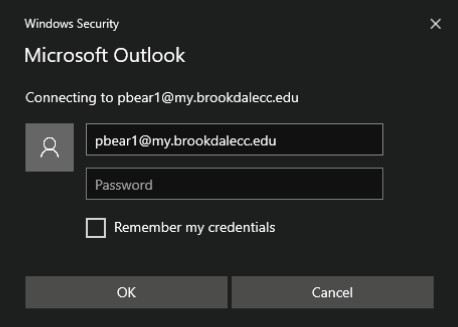
Outlook will prompt you to enter your new password. Be sure to check “Remember my credentials”. If you do not, you will be prompted to enter your password each time you open Outlook.
Brookdale-Issued Laptop — Off-Campus and Not Currently Using the VPN
If you are not currently using the VPN, but are using a Brookdale-issued laptop:
- Navigate to MyBrookdale > NetID/Password > Change Your Password
- Follow the onscreen instructions.
-
Outlook will prompt you to enter your new password. Be sure to check “Remember my credentials”. If you do not, you will be prompted to enter your password each time you open Outlook.
Brookdale-Issued Laptop — Using the VPN
This method will automatically update your password for your Brookdale-issued laptop as well as your NetID password. You will use the new password to log into your Brookdale-issued laptop and to access your Brookdale Email, Office 365, Canvas, Brookdale Experience, and Self-Service.
- Connect your Brookdale-issued laptop to the VPN.
- After you are connected, press Ctrl + Alt + Delete.
-
Select “Change a password”.
-
Enter your current password, then your new password twice.
-
Outlook will prompt you to enter your new password. Be sure to check “Remember my credentials”. If you do not, you will be prompted to enter your password each time you open Outlook.
Working Remotely Using a Personal Device
If you are working remotely on a personal device such as a laptop, desktop computer, or tablet:
- Navigate to MyBrookdale > NetID/Password > Change Your Password
- Follow the onscreen instructions.
For additional support, contact the Help Desk at helpdesk@brookdalecc.edu or call 732-224-2829.
Password Requirements
- Must be at least 8 characters in length.
- Cannot contain any part of your name.
- Cannot be a password you used in the past.
-
Must contain 3 of the 4 following criteria:
- Uppercase letters
- Lowercase letters
- Numbers
- Special characters !, @, #, $, %, ^, &
Notice for Mobile Devices
Remember to update your password on all of your mobile devices (phone, tablet, etc.) to continue to connect to the Brookdale Wireless Network and to receive your Brookdale emails.